


Next: 8 JAVA 1.0 Up: 2 SOFTWARE FOR GLOBAL Previous: 6 C++ Contents Index
The GMC# system is class framework for implementing, testing and viewing custom made or already installed minimization tasks and methods. The application is flexible and can be extended in many ways. This application helps to understand and visualize optimization problems, both mathematical and software related [Mockus, 2000,Andriulaitis and Varnagiris, 2000].
The GMC# system can be run only as C# Application and only under Win98/Win2000/NT/XP OS. C# is one of the newest Microsoft products and it is only in beta stage, but is stable enough. Run GMCS.exe file and you will see this screen 7.1:
Note: You need to have installed Microsoft .NET framework. For more information go to http://msdn.microsoft.com/net/GMC# have methods, tasks and analyzers. The task is the work to be done and method is way of doing that. The analyzers represents results in a visual way.
The choice control at the top of the window shows the list of supported methods. One of them is to be selected. After selecting a method the window changes. The configuration window depends on the actual method selected, but usually it will have an "Iterations" field, where the number of iterations, can be changed. If the entered value is invalid, or the number is out of bounds, the appropriate error message is displayed.
The choice control at the top of the window shows the list of available tasks. One of them should be selected and configured before optimization starts. After selecting a task the window changes. The configuration window depends on the actual task selected. It lists the properties of the task and then the range of the minimization domain 7.2.
Tasks have some properties including dimensions that are configured.
Operations window 7.3:
You can choose operations:
* Run. Starts selected task calculation by using selected method. GMC# shows current function value (0.9884 in this screen) and current iteration number (224 in this screen). * Pause. When RUN button is pressed, calculation starts. By pressing PAUSE, the user can pause calculation for unlimited time. * Stop. STOP button stops calculations and destroys gathered results. * Analysis. When calculation is complete, the user can view results. For more information see section: Analysis windows.
Analysis windows
After optimization one can view results.
The projection windows show the relation between one of the dimensions of the domain of the minimization function and the value of the function 7.4.
The convergence window shows the progress of minimization on iteration basis 7.5.
The GMC# system is class framework for implementing and testing custom minimization tasks and methods. The application is highly flexible and can be extended in many ways. This document is dedicated for design explanation. Figure 7.6 shows the top level design .
Figure 7.7 shows the GUI package.
This package is mediator between tasks, methods, result loggers, analyzers, properties and configuration packages. Also, it represents GUI for user. Here the class is the main class. It concatenates:
1. Configuration package to load tasks and methods.
2. Displays methods and lets customize their properties.
3. Displays tasks and lets customize their properties.
4. Controls optimization workflow.
5. Displays analyzers.
 class selects analyzer to display. It
shows all available analyzers for selected task.
class selects analyzer to display. It
shows all available analyzers for selected task.
Figures 7.8 and show 7.8 the methods package
This package describes method interfaces and implemented methods.
The  interface represents customizable property such as any
value, choice value and others.
interface represents customizable property such as any
value, choice value and others.
The  interface defines for methods tasks, which must
be optimized and result loggers, where to place results.
interface defines for methods tasks, which must
be optimized and result loggers, where to place results.
The  class adds customization possibility through GUI.
The  Class implements the Monte Carlo method
  .
Summarily the classes
.
Summarily the classes
 and
and
 implement the
  and
and  methods.
 represents n-dimensional point of domain.
 represens n-dimensional random point of domain.
 represents point used in Bayes method.
Figure 7.10 shows the tasks package
This package contains task classes (functions that must be optimized by various methods).
The interface represents customizable property such as a
value, the choice value e.t.c.
The  interface defines the function to be optimized and
the domain of variable parameters.
interface defines the function to be optimized and
the domain of variable parameters.
The
 interface defines analyzers to
display results.
interface defines analyzers to
display results.
The class  represents set of possible arguments.
The class  calculates the function
  .
.
The class  defines a set of arguments.
The class  calculates the task
  .
.
The class  defines a set of arguments.
Figures 7.11,7.13, and 7.13 show the properties package
This package is dedicated for user input gathering and converting to method and task data.
The  interface t represents all customizable properties of
methods and tasks.
interface t represents all customizable properties of
methods and tasks.
The
 stores data from simple input field that manages
FieldProvider .
stores data from simple input field that manages
FieldProvider .
The
 stores data from choice box.
The
 stores data from two simple input field(they manage two
 objects) that is used for range specification.
The
 interface provides methods for setting and getting
values from
interface provides methods for setting and getting
values from  fields.
The
 class implements the
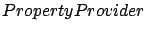 for setting and getting
data of single GUI fields.
for setting and getting
data of single GUI fields.
The class
 implements the
for setting and getting
data of multiple GUI fields.
implements the
for setting and getting
data of multiple GUI fields.
The
 interface selects methods and
properties.
interface selects methods and
properties.
The class  inherits the
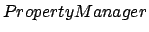 and implements methods.
The class
and implements methods.
The class  stores task properties
entered by user.
stores task properties
entered by user.
The class
 stores and manages providers, applies
changes to GUI.
stores and manages providers, applies
changes to GUI.
The class  stores method properties entered by user.
The class
 stores loaded and created tasks and methods,
provides information about them.
stores loaded and created tasks and methods,
provides information about them.
Figure 7.14 shows the configuration package
This package is dedicated for configuration file parsing.
 represents configuration file entry: tasks or
method and library, where stored these classes implementation.
represents configuration file entry: tasks or
method and library, where stored these classes implementation.
The exception class
 is thrown by configuration
parsing error.
is thrown by configuration
parsing error.
The class
 is the main configuration parsing class. This object takes
file name (where is stored configuration in XML format) and parses it (finds
tasks, methods and libraries where methods and tasks are implemented).
is the main configuration parsing class. This object takes
file name (where is stored configuration in XML format) and parses it (finds
tasks, methods and libraries where methods and tasks are implemented).
Figures 7.15 and 7.16 shows the analyzers package
This package transforms result loggers data into own data and displays task results in various charts.
The class  stores transformed logger data.
The abstract class  takes
takes  as data and
paints charts into the
as data and
paints charts into the  objects.
 draws line chart (lines could be concatenated or
not).
draws line chart (lines could be concatenated or
not).
The  dialog class transforms data and displays projection.
The  dialog class transforms data and displays how
the best obtained values depend on iteration numbers..
dialog class transforms data and displays how
the best obtained values depend on iteration numbers..
Result loggers package 7.17
This package is used to access, manipulate and store results.
The class  stores results at appropriate tasks domain point.
The  interface is for logging results (uses method classes).
The
 interface manipulates results (uses analyzers
classes).
interface manipulates results (uses analyzers
classes).
The class  implements the
  and the
  , stores results.
The event class
 is thrown when new optimization results
occurs.
is thrown when new optimization results
occurs.
The  class controls workflow of minimization, works as seperate
thread and runs method with task.
class controls workflow of minimization, works as seperate
thread and runs method with task.
The GMC# system is class framework for implementing and testing custom minimization tasks and methods. The application is highly flexible and can be extended in many ways.
The sample Configuration.xml file is provided, which shows, how to set up configuration parameters of the GMC# framework. To add custom task or method to the framework you need register information about task or method to the configuration file.
The file looks like this:
<configuration>
<task>
<classname>Sin</classname>
<library>GMTaskMethod.dll</library>
</task>
<task>
<classname>Square</classname>
<library>GMTaskMethod.dll</library>
</task>
<method>
<classname>Mig1</classname>
<library>GMTaskMethod.dll</library>
</method>
<method>
<classname>Bayes</classname>
<library>GMTaskMethod.dll</library>
</method>
<method>
<classname>Exkor</classname>
<library>GMTaskMethod.dll</library>
</method>
</configuration>
<task> tag indicates task such as Sin (sine) or Square. The GMC# framework must know your task name and library where this task is implemented. The name you provide will appear in the GMC# task list. Example:
<task>
<classname>Sin</classname>
<library>GMTaskMethod.dll</library>
</task>
Task class name is
and it is implemented in GMTaskMethod.dll file.
<method> tag indicates mathematical method such as Bayes or Mig1. The GMC# framework must know your method name and library where this method is implemented. The name you provide will appear in the GMC# method list. Example:
<method>
<classname>Bayes</classname>
<library>GMTaskMethod.dll</library>
</method>
Method class name is Bayes and it is implemented in GMTaskMethod.dll file.
NOTE: the custom task or method library (dll) location must be added to PATH or the library should be in GMC# installation directory.
In order to solve custom minimization tasks, users have to develop and compile their own classes. The task class should implement a Task interface:
public interface Task : Customizable
{
Domain Domain
{
get;
}
double F(Point point);
}
The interface Task is derived from Customizable, which requires it to be
configurable by the user. For further information on how to implement the
configuration of the properties, refer to the section 5.
F calculates the value of the minimization function at the specified Point,
which belongs to the Domain of the function. Domain returns the Domain of
the minimization function, over which the function is to be evaluated. The
task class should always return the same copy of the domain object, whenever
domain is called. The Domain is a abstract class:
public abstract class Domain : Customizable
{
public double[] min;
public double[] max;
public Point defaultPoint;

public abstract string[] Dimensions
{
get;
}
public void Customize(PropertyManager propertyManager);
public double ConstraintAt(int i, Point point);
public void NormalizePoint(Point point)
public Domain();
}
The abstract property Dimensions should be overridden to return the
descriptions of the dimensions of the domain of the minimization function.
These descriptions are used in the analysis and configuration windows.
Variables min, max and defaultPoint are created by Domain, but should be
initialized by the derived class, as required.
The Point class implements a point in a n-dimensional space of Domain:
public class Point public double[] x; public Point(Domain domain) ....
It constructs from a Dimension object and creates the required array accordingly. The Point class also has several useful methods to calculate distance between points, norms and etc.
Summary
To implement a new task the following should be done:
1. Derive a class from a class Domain
2. Provide a constructor for it to initialize the default dimension range
and default point.
3. Override the property Dimensions and return descriptions of the
dimensions of the domain.
4. Create a new class, which implements the interface Task.
5. Override the property Domain, which returns the single copy
of the custom domain class.
6. Override the method F
Example
public class SinDomain : Domain
{
public override String[] Dimensions
{
get
{
return dimensions;
}
}
public SinDomain()
{
min[0] = min[1] = min[2] = -2D;
max[0] = max[1] = max[2] = 2D;
defaultPoint.x[0] = 0.0D;
defaultPoint.x[1] = 0.0D;
defaultPoint.x[2] = 0.0D;
}
static readonly String[] dimensions =
{ "X Sin Argument", "Y Sin Argument",
"Dummy" };
}

public class Sin : TaskWithAnalyzers
{
public Domain Domain
{
get
{
return (Domain)m_domain;
}
}
public double F(Point point)
{
return function != 0 ?
Math.Cos(point.x[0] * point.x[0] + point.x[1] *
point.x[1])
* multiplier :
Math.Sin(point.x[0] * point.x[0] + point.x[1] * point.x[1]) *
multiplier;
}
public Sin()
{
m_domain = new SinDomain();
multiplier = 1.0D;
function = 1;
}

private SinDomain m_domain;
public double multiplier;
public int function;
}
Implementing new minimization methods
GMC# can be extended by providing additional calculation methods, which might be more efficient, faster or more flexible. The method class should implement the Method interface:
public interface Method : Customizable
{
int Iterations();
Result Run(ResultLogger resultlogger, Task task);
}
The interface Method is derived from Customizable, which requires it to be
configurable by the user. For further information on how to implement the
configuration of the properties, refer to the section 5. Iterations returns
the number of iterations, the method will do. As many of the minimization
methods will have a configurable "Iterations" property, the MethodBase
abstract class is implemented on top of Method interface, which overrides
the iterations and customize methods. By inheriting from MethodBase only the
method run has to be overridden. Run runs the method on the specified Task
and writes results to the specified ResultLogger. The method should return
the best result. ResultLogger gathers the generated results and stores them.
The ResultLogger interface defines the following members:
public interface ResultLogger
{
void Log(Result result);
Result LogAt(int i);
}
Log should be used to log the result of every iteration of the method.
Usually the class, which implements ResultLogger will update the user
interface objects to reflect the progress of the method, when log is called.
Some methods require the history of the minimization to be available to move
on. The LogAt method returns the Result, which has been logged previously
(in iteration it) using log method.
A Result class is a container of the iteration state:
public sealed class Result
{
public Result();
public Result(int i, Point point1, double d);

public int iteration;
public Point point;
public double value;
}
It holds the iteration number, the point, where the value of the Task.F was
calculated, and the value of Task.F at this point.
Most of the worker objects have to be configured by the user before usage. For example, the user may want to change the number of iterations, the method should do, or the range of the domain of the task function. A PropertyManager is used to list properties, which may be changed. A PropertyManager is a property list, which is described by the interface PropertyManager:
public interface PropertyManager
{
void RemoveAll();
void Add(Property property);
void Remove(Property property);
}
Method Add should be used to add new Property objects to the list. Currently
the Property interface contains method for label retrieving:
public interface Property
{
string Label
{
get;
}
}
The GMC# framework has such Property implementations:
* FieldProperty - a single value the user can change mapped to text field control. * ChoiceProperty - several values mapped to choice control. The user selects only one value . * RangeProperty - three values: min, default, max mapped to three text fields.
The most important component of the Property is a PropertyProvider. It's an object, which knows how to retrieve the value of the property and how to store it after it has been changed by the user. The GMC# package provides a set useful property providers:
* ArrayElementProvider accesses the array of elements. * FieldProvider accesses specified attribute of some class instance.
Both providers uses .NET Framework reflection so works with array elements and class attributes of any type.
Examples
The sample code shows how to add a property named "Iterations", which is stored as attribute of the current class:
propertymanager.Add(new FieldProperty("Iterations",
new FieldProvider(this,
"iterations")));

Another example with ChoiceProperty:

string[] m_as = new string[] { "Sin", "Cos" };
propertymanager.Add(new ChoiceProperty("Function",
new FieldProvider(this,
"function"), m_as));
The user can choice from "Sin" and "Cos", when the user selects "Sin" value,
if the selected "Sin" 1 is assigned to "function" attribute of the current
class, and if the user selected "Cos" 2 is assigned to the attribute.
And example with RangeProperty:
ArrayElementProvider provider1 = new ArrayElementProvider(min,i);
ArrayElementProvider provider3 = new ArrayElementProvider(max,i);
ArrayElementProvider provider2 =
new ArrayElementProvider(defaultPoint.x,i);
RangeProperty theProperty = new
RangeProperty(Dimensions[i],provider1,provider2,provider3);

Where min, max, defaultPoint is declared in such way:

min = new double[Dimensions.Length];
max = new double[Dimensions.Length];
defaultPoint = new Point(this);
There is no need to write custom property provided, because GMC# framework uses reflection, so available GMC# property providers will work with any data type.
Now GMC# framework supports two analyzers: convergence and projection. GMC# framework does not limit analyzers classes with any restriction except: .analyzer class must has constructor which takes ResultRepository as parameter .analyzer class must inherit Form class (to show some data)
Example:
public class Convergence : Form
{
public Convergence(ResultRepository r) { ... }
...
}
GMC# has simple graphical library to draw line and points charts (system is
open to new graphical library implementation). This library draws 2D charts
and takes two dimensional coordinates ChartData. ChartData stores X and Y
value arrays. LineChart class ChartData object as data and draws 2D chart.
LineChart may be easily configured:
ChartData chartData = new ChartData(x_array, y_array);
lineChart = new LineChart();
lineChart.data = chartData;
lineChart.xAxisLabel = "iterations"; //x-Axis name
lineChart.yAxisLabel = "F(x)"; //y-Axis name
lineChart.xAxisStep = r.ResultCount() / 10f; //
x-Axis grid size
lineChart.yAxisStep = (float)( maxY - minY ) / 8f; //
y-Axis grid size
lineChart.xAxisMaxRange = r.ResultCount(); //x-Axis max value
lineChart.xAxisMinRange = 0f; //x-Axis min value
lineChart.yAxisMaxRange = maxY; //y-Axis max value
lineChart.yAxisMinRange = minY; //y-Axis min value
lineChart.showPoints = false; //indicates points visibility
lineChart.connectPoints = true; //
indicates lines between points visiblity
LineChart method: void Paint(Graphics g, Rectangle rec) takes simple graphical surface and draws line chart on it (uses only Rectangle size surface of all surface). To join task result analyzer with line chart, register paint event handler, which will forward request for repaint to line chart object.
Example:
class Convergence : Form
public Convergence(ResultRepository r) { ... }

//standard component initialization method
private void InitializeComponent()
{
...
this.components = new Container();
this.graphPanel = new SPanel();
this.projectionName = new ComboBox();
graphPanel.BackColor = SystemColors.ControlLightLight;
graphPanel.Size = new Size(400, 400);
graphPanel.TabIndex = 0;
graphPanel.Paint += new PaintEventHandler(graphPanel_Paint);
graphPanel.Resize += new EventHandler(graphPanel_Resize);
this.Controls.Add(graphPanel);
...
}

//repaint event handler protected void
graphPanel_Paint(object sender, PaintEventArgs e)
{
...
lineChart.Paint(e.Graphics, new Rectangle(0, 0, graphPanel.Width,
graphPanel.Height));
...
}
...
}
jonas mockus 2004-03-03


